

Turn on captions
1
Select Captions
In the call’s control tray, select Captions. A confirmation dialog opens. Only you see it.
2
Approve ElevenLabs, if asked
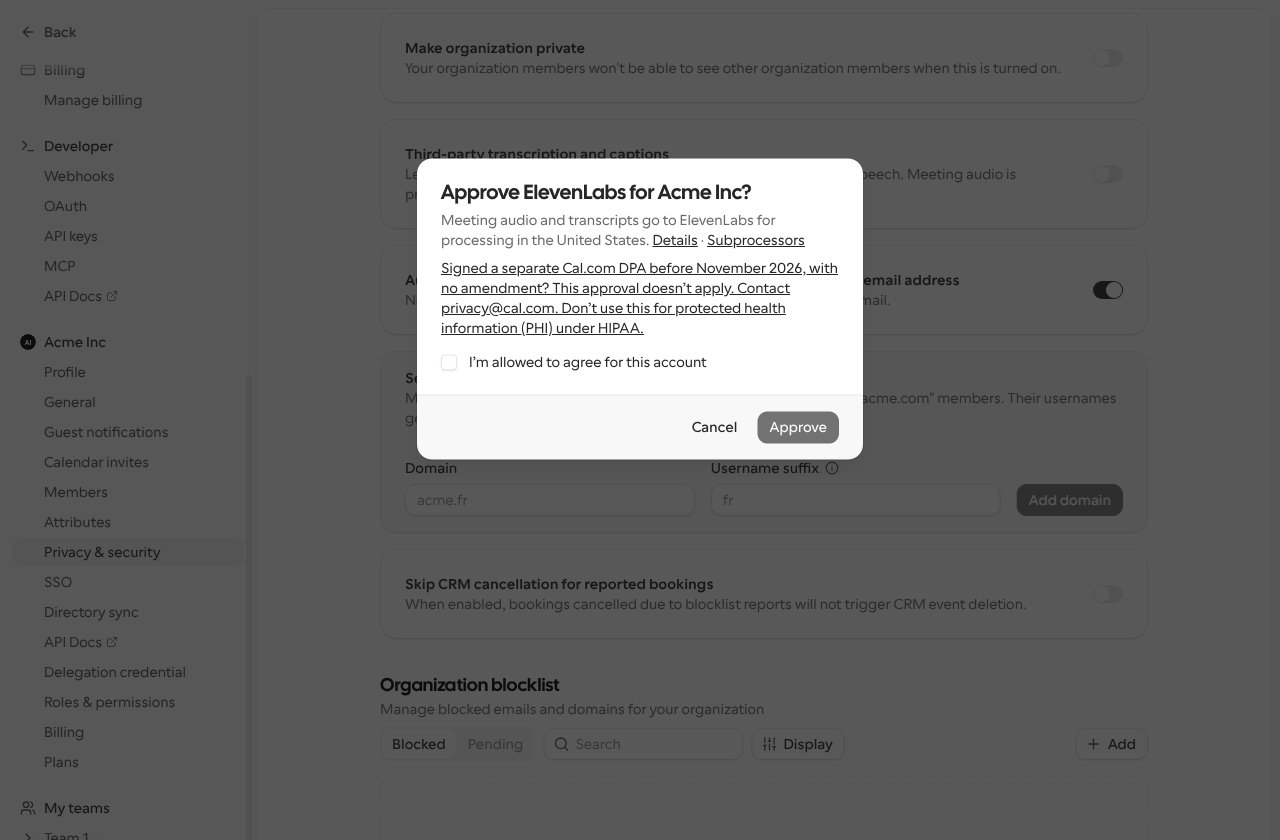
The dialog says that meeting audio and transcripts go to ElevenLabs for processing in the United
States, with Details and Subprocessors links. If your account hasn’t approved ElevenLabs yet
and you’re allowed to approve, tick I’m allowed to agree for this account. Confirm stays
disabled until you do.
3
Confirm
Select Confirm. Cal.com saves the approval, then starts captions.
Signed a separate Cal.com DPA before November 2026, with no amendment? This approval doesn’t apply.
Contact privacy@cal.com.This feature isn’t HIPAA-eligible. Please don’t use this feature where protected health information (PHI) might come up.
Who can approve
The approval belongs to the account that owns the call:
When more than one organization has to approve, each of them must approve before captions start, and you
can approve only if you’re allowed to approve for every organization that hasn’t approved yet. Approving
needs permission to update the organization or team settings. You have to be signed in to
Cal.com: hosts who joined without signing in can’t approve. You can’t approve while impersonating
another user.
Your account is asked only once. It’s asked again only if the terms of the processing change, for
example what is sent or where it’s processed.
If you can’t approve
If your account hasn’t approved ElevenLabs and you can’t approve for it, the dialog tells you to ask your admin, and captions don’t start. Your admin can approve by turning on captions in one of their own calls, or from the organization’s privacy settings or the team’s settings. After that, select Captions again; you don’t need to leave the call. If you’re signed in, the dialog also has Notify your admin. Selecting it emails the owners and admins who can approve for your account, with a Review in settings link to the organization’s privacy settings or the team’s settings. The dialog closes and you see Your admin has been notified. If the email can’t be sent, the dialog stays open so you can try again. Each account’s admins are emailed at most once every 24 hours, whoever asks. After that, the button reads Admin notified for everyone on the account until 24 hours have passed. Hosts who joined without signing in don’t see the button.Automatic captions that can’t start
If a booking has automatic captions turned on but its account hasn’t approved ElevenLabs, the host sees Captions are off. Your account hasn’t approved ElevenLabs. at the top of the call. It stays until they close it. Hosts who can approve see Approve, which opens the captions dialog. Other signed-in hosts see Notify your admin (or Admin notified if the admins were emailed in the last 24 hours). It works the same as in the dialog and, once the email is sent, closes the message for the rest of the call.Approve or withdraw for an organization
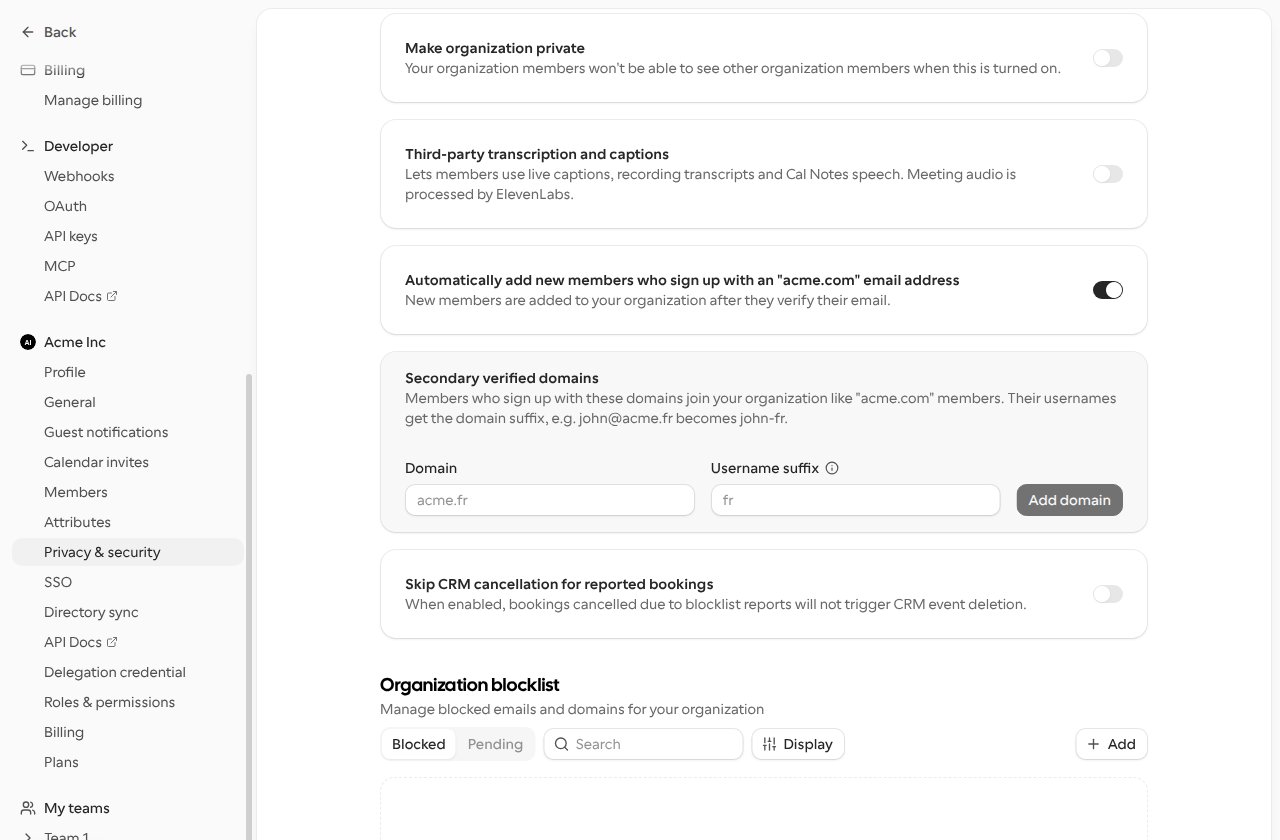
Organization admins can turn ElevenLabs processing on or off for the whole organization with the Third-party transcription and captions switch. It covers live captions, recording transcripts and Cal Notes speech for every member.1
Open the organization's privacy settings
Go to Settings, then under your organization select Privacy & security. The switch is below
Make organization private.
2
Turn on the switch
Turning it on opens the same approval dialog as in a call. Tick I’m allowed to agree for this account,
then select Approve. If you cancel, nothing is approved and the switch stays off.
Approve or withdraw for a team
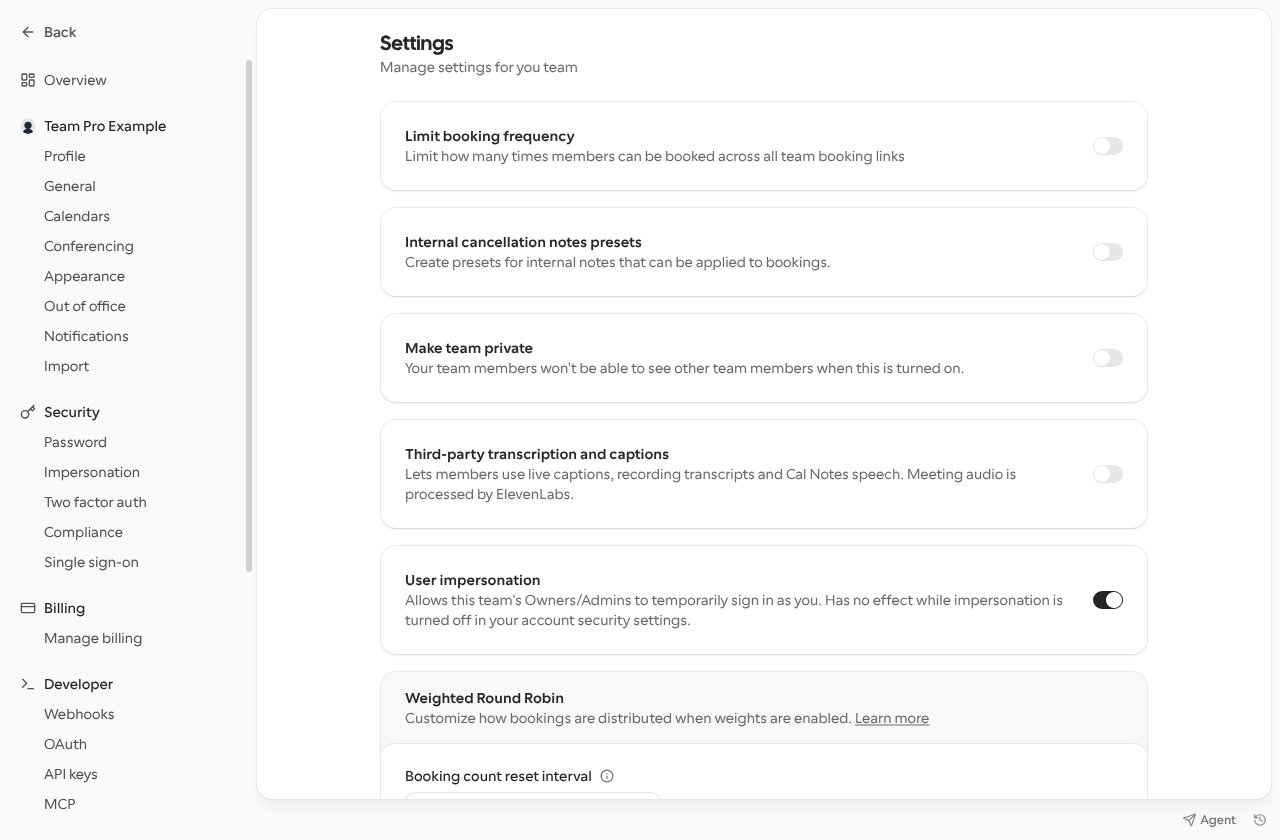
Admins of a team that isn’t part of an organization have the same Third-party transcription and captions switch in the team’s settings. It covers live captions and recording transcripts in the team’s calls: bookings for the team’s events and team rooms.1
Open the team's settings
Go to Settings, then under My teams select your team’s Settings. The switch is below
Make team private.
2
Turn on the switch
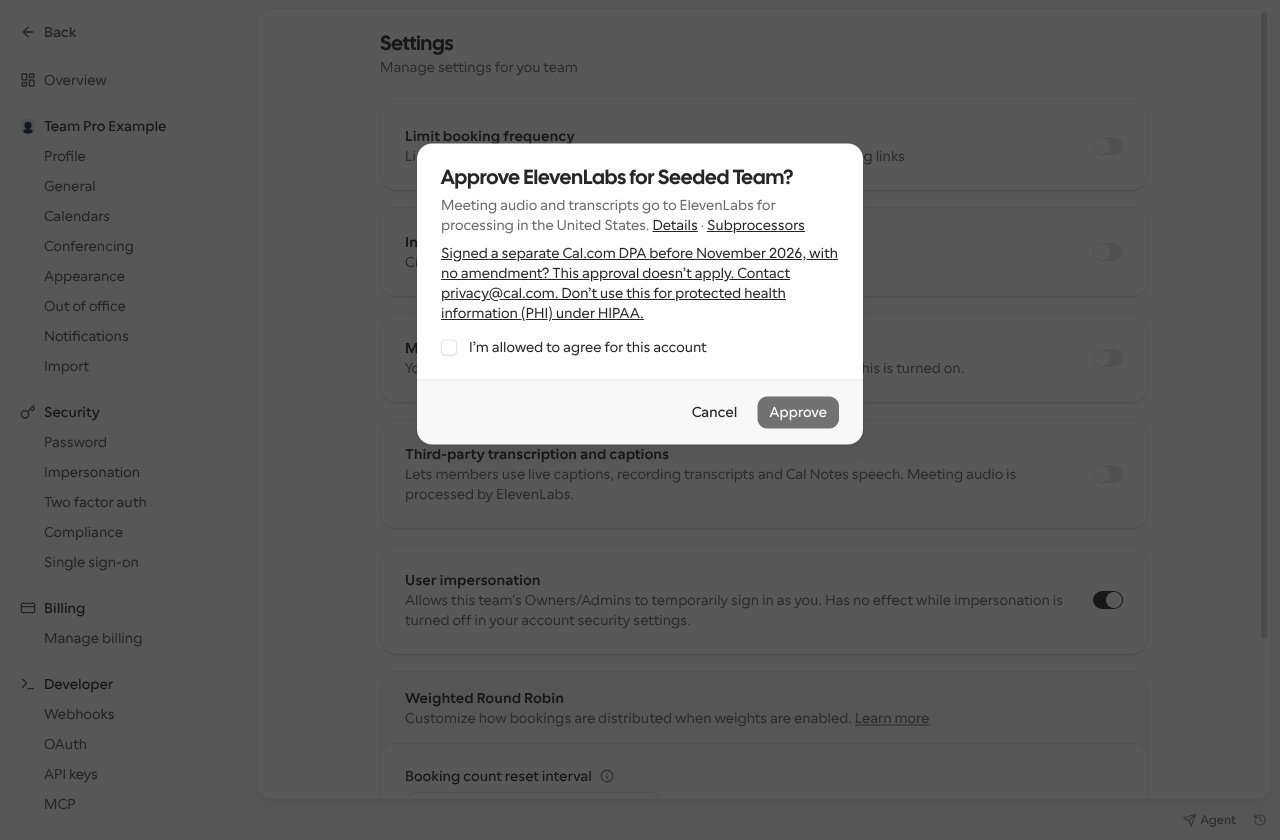
The approval dialog names your team. Tick I’m allowed to agree for this account, then select
Approve. If you cancel, nothing is approved and the switch stays off.
Guests agree before joining
Once your account has approved ElevenLabs, guests have to agree before they can join a Cal Video call. A guest is anyone who isn’t signed in as a member of the account that approves for the call (see Who can approve), including people signed in to other Cal.com accounts. Members of that account don’t see anything new. On the screen before the call, a guest sees an unticked checkbox with Details and Privacy policy links. It reads This call uses captions and transcription, processed by ElevenLabs. when captions or a recording transcript are on for the call, and The host can turn on captions and transcription, processed by ElevenLabs. otherwise. Join stays disabled until they tick it. Guests are asked every time they join, including guests let in from the lobby. Calls of accounts that haven’t approved ElevenLabs don’t show the checkbox.When captions don’t start
- Automatic captions: if a booking has automatic captions turned on but its account hasn’t approved ElevenLabs, captions don’t start. Only the host is told, as described in Automatic captions that can’t start.
- Cancel while saving: if you tick the box, select Confirm and then cancel before the approval has saved, captions don’t start. The approval you gave is kept.
- Save fails: the dialog stays open and asks you to try again. Captions don’t start.
- Wording changed: if the dialog’s wording changed since you opened the call, nothing is approved and the dialog asks you to reload the page to read the new version.
- A guest joined before the approval: if a guest joined the call while your account hadn’t approved ElevenLabs, they were never asked. Captions can’t be turned on for the rest of that call, even if an admin approves during it. The approval is saved, and the dialog says captions can be used from the next call.
- Cal.ai turned off: if your organization has turned off Cal.ai features, standalone rooms don’t offer captions at all.
Approval only applies on Cal.com. Self-hosted instances never ask for it, and their captions dialog
doesn’t name a processor.