

Open the chat
Select Chat in the call’s control tray. When the panel is closed, the Chat button shows how many unread messages you have. On a computer the panel opens beside the call and moves it aside instead of covering it. On a phone it covers the whole screen. If you close the panel while typing, your draft is still there when you open it again. While the panel is closed, a message from someone else also plays a short sound. When several messages arrive close together, you hear it at most once every three seconds. Your own messages and the messages already in the chat when you join don’t play a sound.Keyboard shortcuts
On a computer, press Option+C on a Mac or Alt+C on Windows and Linux to open the chat with the message box ready to type in. Press it again to close the chat. The tooltip on the Chat button shows the shortcut. Call shortcuts also work while you’re typing in the message box, without adding a character to your message:
Letters on their own, without Option or Alt, are typed as normal and don’t control the call. The
shortcuts don’t work while a menu or dialog is open.
Send and react to messages
- Send a message: type in the message box and send it. Messages can be up to 2,000 characters.
- Reply: reply to a message to quote it above your own. If the original is deleted later, the reply shows Original message was deleted.
- React: react to a message with 👍, ❤️, 😂, 😮, 😢 or 🎉. Hover over a reaction to see who reacted.
- Copy: select Copy text in a message’s menu.
- Delete your own message: select Delete message in its menu and confirm. The message is deleted for everyone and replaced with Message deleted.
Emoji suggestions
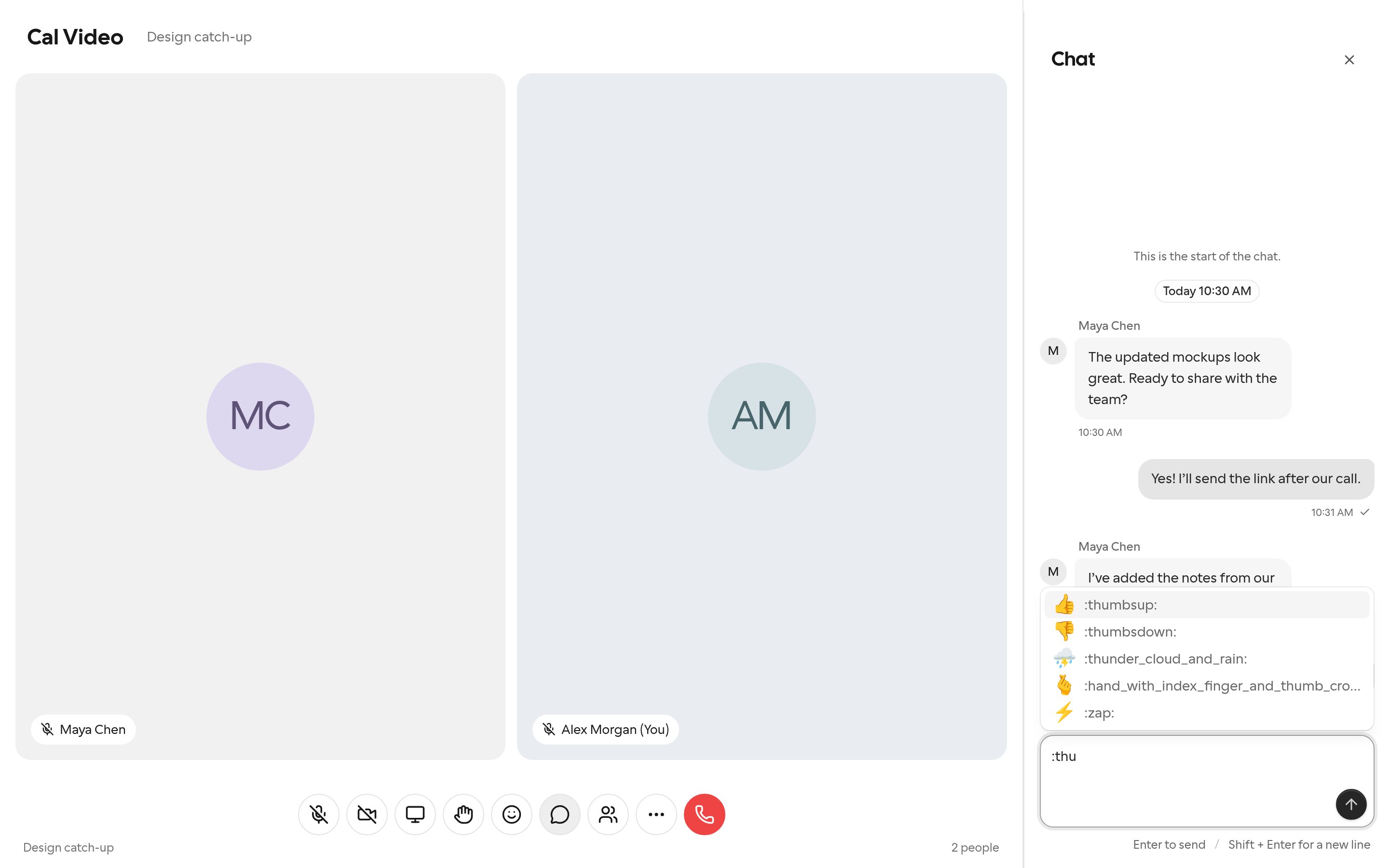
To add an emoji by name, type a colon followed by at least two characters, such as:thu. The chat
suggests up to eight matching emoji above the message box, using Slack-style names like
:thumbsup:. Select one, or highlight it and press Enter, to put the emoji in your message as
plain text. Choosing an emoji doesn’t send the message. Press Escape to close the suggestions
without closing the chat.
10:30 and emoticons like :) or :-D don’t open suggestions, so Enter sends them
as typed. Shortcuts such as :+1 and :-1 do suggest 👍 and 👎.
Host controls
Hosts can moderate the chat. Guests don’t see these options.
When a host removes someone from the call, that person loses access to the chat straight away. Their
earlier messages stay in the chat.
Hosts can stop a participant’s screen share. Select Stop screen
share in the person’s options, from the options button (⋯) on their tile or next to their name
in the People panel. The request reaches the participant through their chat connection, so if
their chat is reconnecting at that moment, the share keeps going and you can select Stop screen
share again. Hosts can’t stop their own share this way.
Change your name during a call
On self-hosted instances that switch Cal Video to RealtimeKit (CAL_VIDEO_PROVIDER=realtimekit),
anyone in a call that uses this chat can change their own name while the call is running, in booking
calls, rooms and Cal Audio calls alike. Open the People panel and select your name in your own row,
or in a Cal Audio call select your name under your avatar. Type the new name, then press Enter or
click away to save it. You can only rename yourself.
Everyone sees the new name on your tile and in the People panel, and the chat shows it on your
messages and in the typing and seen-by lines. People who join later see it too. Names can be up to 80
characters and in any language. If a name can’t be used, for example because nothing in it is
visible, you see “That didn’t work. Try again.” and your name stays as it was.
If you leave and rejoin a room or Cal Audio call from the same page, you join under your new name. In
a booking call, rejoining brings back the name from the booking.
Privacy
Messages are always shown as plain text, so any HTML or code in a message is displayed, not run. Messages are deleted seven days after the call ends. Like the rest of the call, the chat shows in your browser’s language. See Cal Video localization.On self-hosted instances where the chat service isn’t configured, calls still work but chat is
unavailable. Provider built-in chat is never enabled.