

acme.com. Once it’s enabled, Cal.com reads busy
times and creates booking events in the calendar of every member whose email is on that domain.
Delegation credentials support three workspace platforms:
An organization can have one delegation credential per email domain, and can use different
platforms for different domains.
Who can manage delegation credentials
Delegation credentials are managed on the Delegation credential page of your organization settings, at/settings/organizations/delegation-credential. Only organization owners and admins
with permission to update the organization can open it. To enable a credential, your own email
address must be verified.
When you enable a credential, Cal.com checks that it works by connecting to the provider as an
organization member on the credential’s domain: you, if your email is on that domain, otherwise the
first accepted owner, then admin, whose email is on it. A credential that fails this check stays
disabled.
What members get automatically
Once a credential is enabled, Cal.com sets up the calendar of every eligible member in the background, so members don’t have to configure anything:- Their calendar is connected through the delegation credential.
- Their primary calendar is checked for conflicts, so busy times there block bookings.
- If they don’t have a destination calendar yet, their primary calendar becomes the calendar new bookings are added to. A destination calendar a member has already chosen is never replaced.
Set up Microsoft Exchange (on-premises)
The Microsoft Exchange platform is for organizations that run their own Exchange server and reach it through Exchange Web Services (EWS). Cal.com signs in with one service account and uses Exchange impersonation to act as each member, so members don’t need to enter their own Exchange password.Microsoft Exchange delegation is for on-premises Exchange only. Microsoft removed
ApplicationImpersonation from Exchange Online, so if your mailboxes are in Microsoft 365, use
the Microsoft 365 platform instead.- Your organization is verified and the domain you want to connect is one of its verified email domains: your primary domain or a verified secondary domain. Any other domain, including a secondary domain that’s still pending verification, is rejected. Each credential covers one domain, so add a separate credential for each domain you want to connect.
- You have an Exchange service account and its EWS URL, for example
https://mail.acme.com/EWS/Exchange.asmx. The Exchange server must accept requests from Cal.com.
1
Add the credential
Go to Settings, then under your organization select Delegation credential, and select Add delegation
credential. Enter one of your verified domains as the Domain and choose Microsoft Exchange as the workspace
platform, then fill in: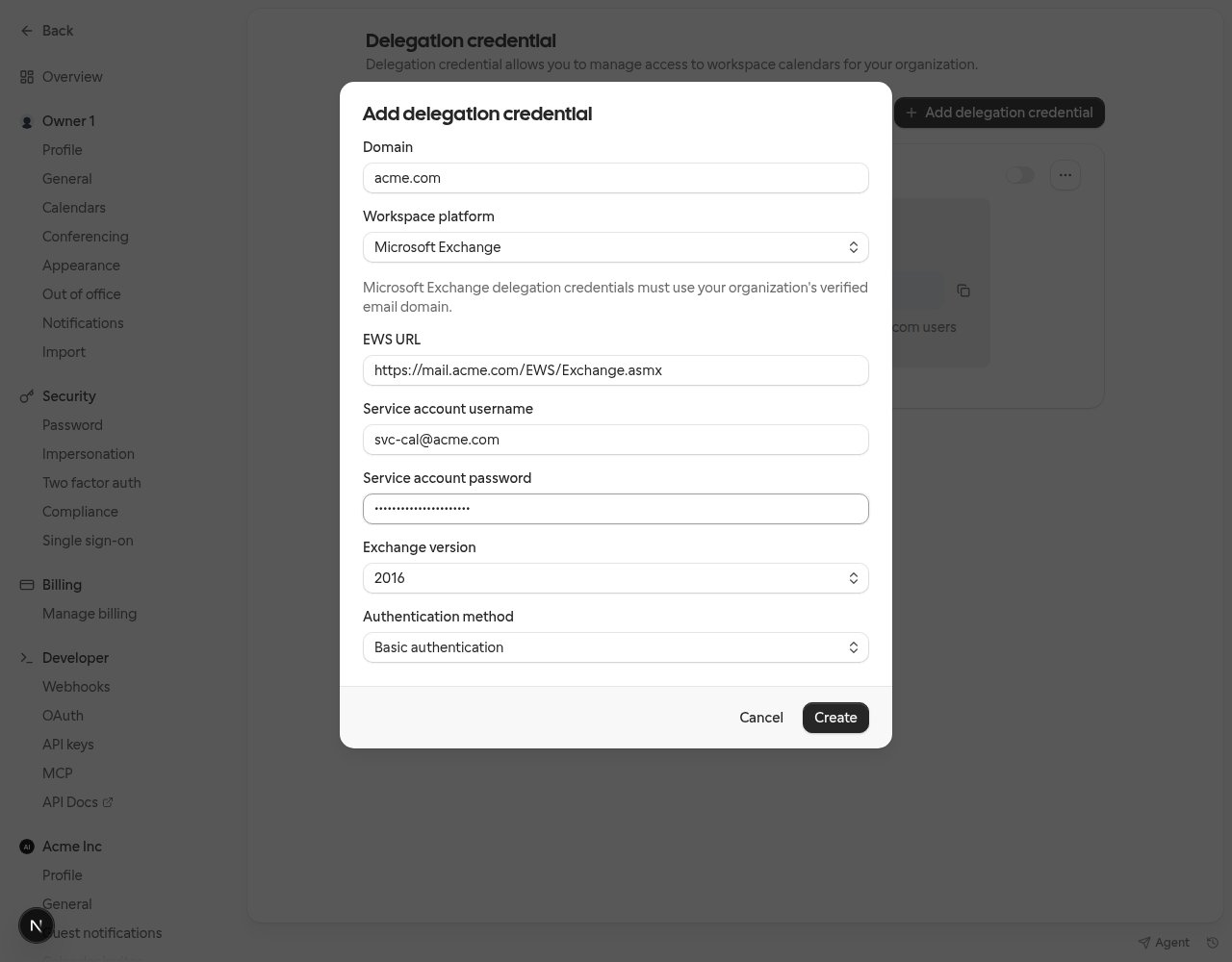
Select Create. The credential is added in a disabled state.
2
Grant ApplicationImpersonation in Exchange
Under the new credential, Cal.com shows the service account and a command to run in the
Exchange Management Shell, for example: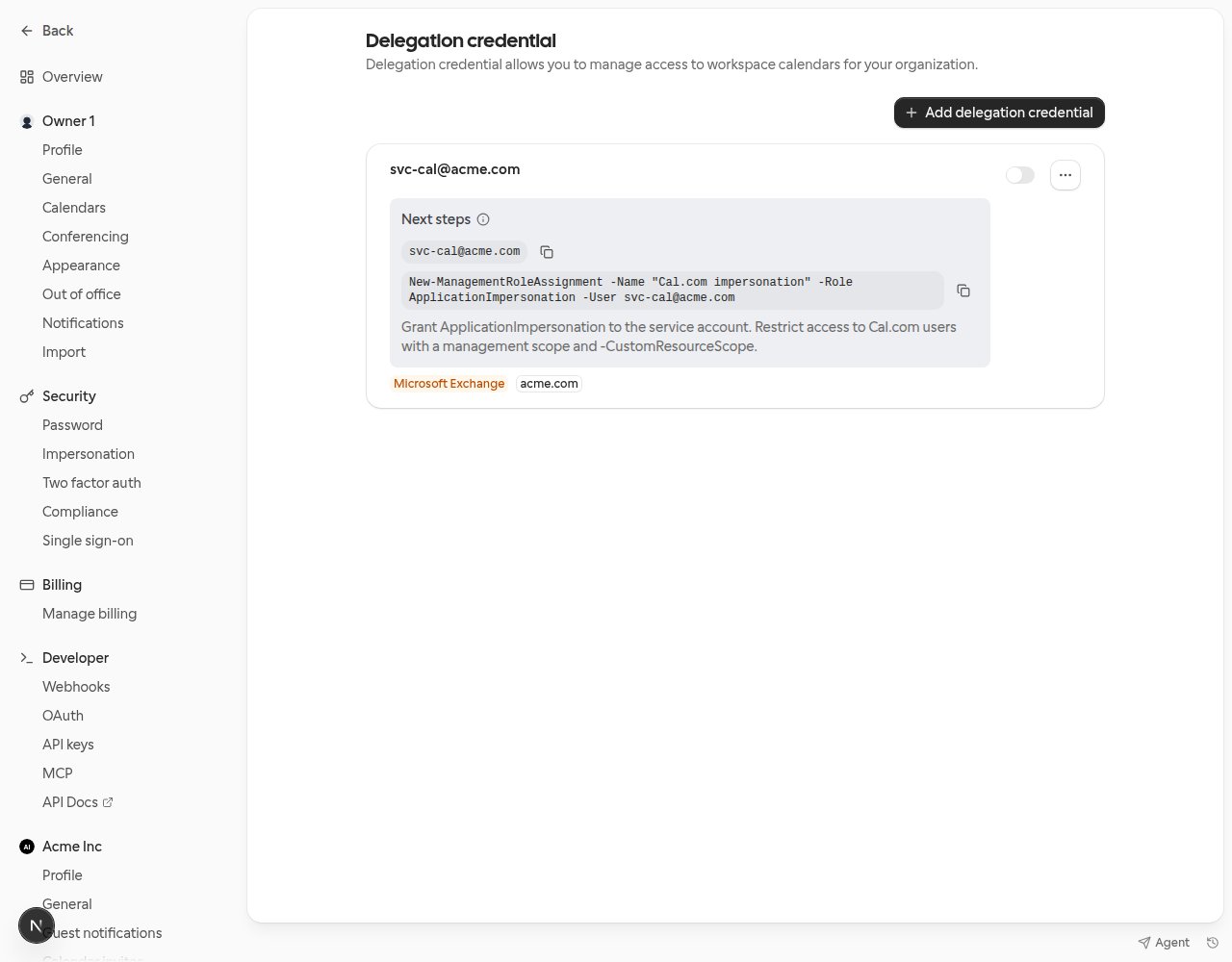
3
Enable the credential
Once the role is assigned, turn on the switch next to the credential. Cal.com connects to the EWS URL with the service account and opens the
calendar of an owner or admin on the domain while impersonating them. If the check passes, the
credential is enabled.
The check also needs an organization owner or admin with a verified email address on the
credential’s domain to impersonate.
What changes for members
Once the Exchange credential is enabled, every member whose primary email is verified and on the credential’s domain has their Exchange calendar connected automatically. Cal.com checks it for conflicts and creates their bookings in their mailbox, without the member connecting anything.- Members whose primary email isn’t verified aren’t connected through the credential. They can still connect Exchange themselves with their own login.
- Exchange has no conferencing app, so unlike Google and Microsoft 365, no video app is added for members.
Change or remove an Exchange credential
You can’t switch an existing credential to or from Microsoft Exchange. To move a domain to or from Exchange, delete the credential and create a new one. When you disable or delete a credential, Cal.com stops using it straight away and emails the affected members. Members who hadn’t connected their calendar themselves need to connect it to keep their availability and bookings in sync.Manage delegation credentials with the API
Organization admins can also list, create, update, delete and verify delegation credentials with API v2 under/v2/organizations/{orgId}/delegation-credentials. See the
Delegation Credentials API reference.