

The copy starts inactive. It isn’t attached to any booking links, teams or routing forms, so it
won’t send anything until you turn it on.
Duplicate a workflow
1
Open Workflows
Go to Workflows and find the workflow you want to copy.
2
Select Duplicate
Select the copy icon (Duplicate) on the workflow’s row. On a phone, open the workflow’s
options menu and select Duplicate.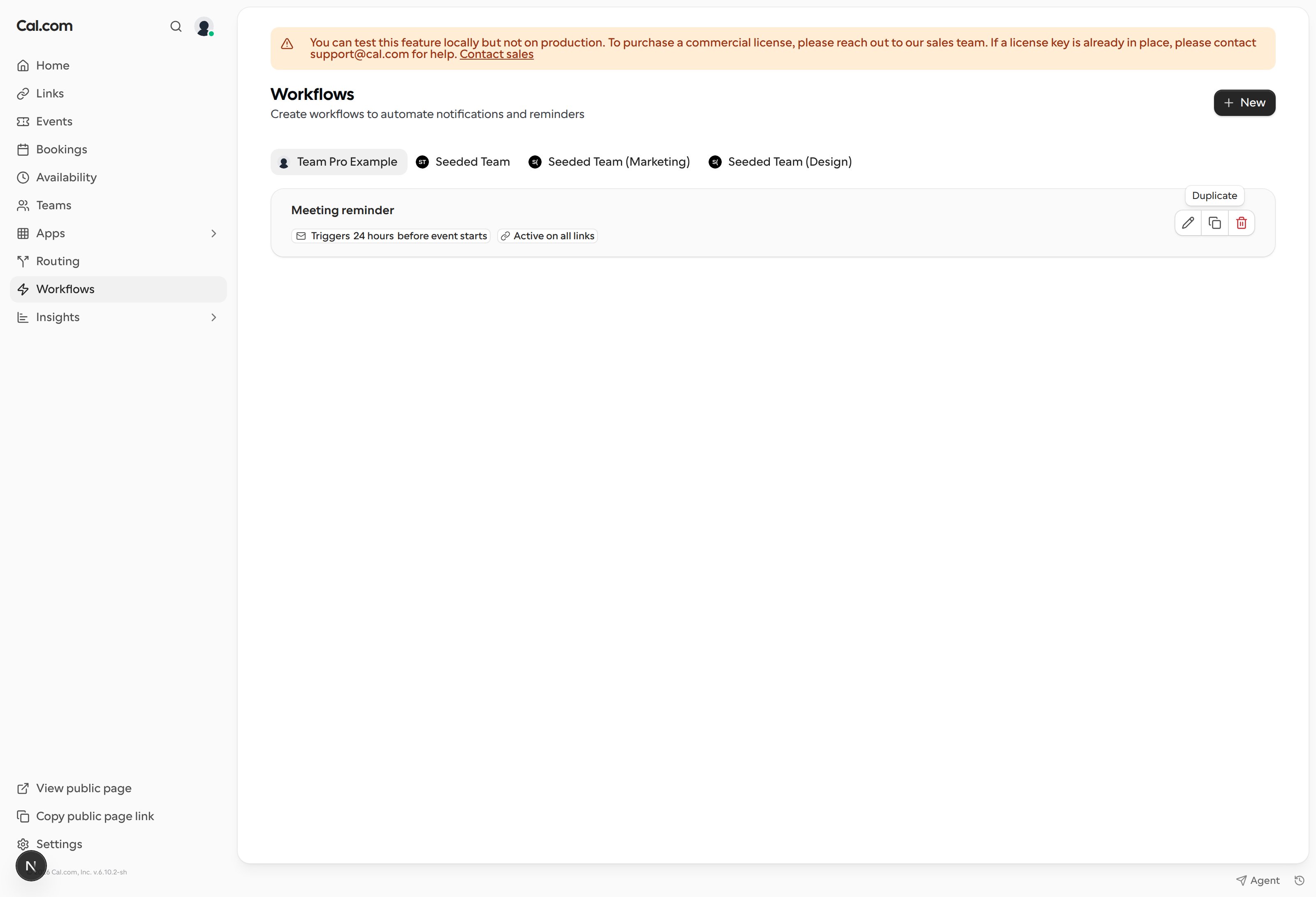
3
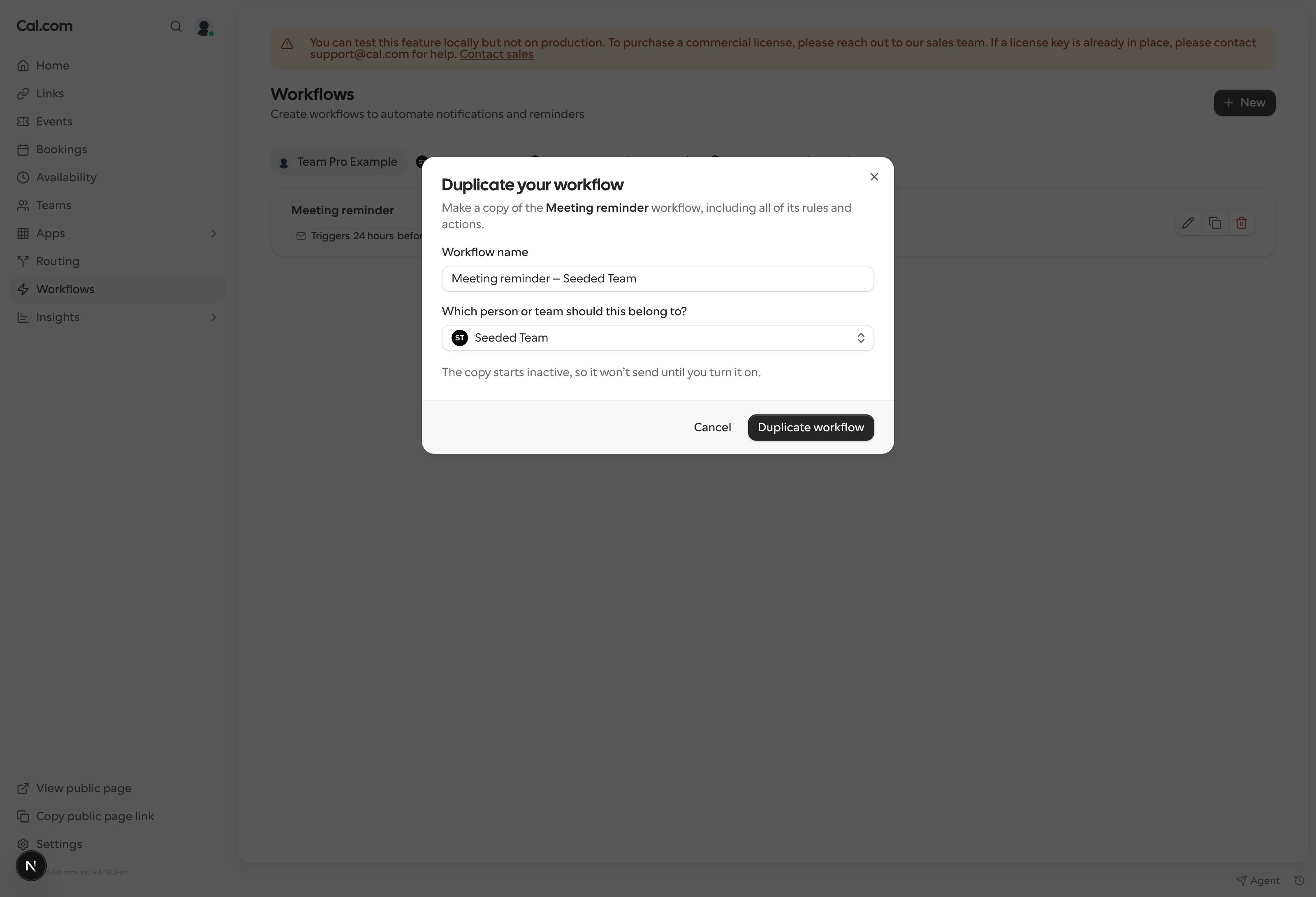
Name the copy
Enter a Workflow name. It starts as the original workflow’s name; names can’t be empty or
longer than 255 characters.
4
Choose an owner
Under Which person or team should this belong to?, choose your personal account or one of
your teams. Only teams you’re allowed to create workflows for are listed. If you choose your
personal account, the copy belongs to you, even when you’re copying someone else’s workflow.
5
Duplicate
Select Duplicate workflow. Cal.com creates the copy and opens it in the workflow editor.
What gets copied
The copy keeps the workflow’s trigger, timing, steps, paths, conditions, message content, translations and webhook addresses. It doesn’t keep:- Where the workflow is active. The copy isn’t active on any booking links, teams or routing forms, and the “apply to all” option is turned off.
- Cal.ai phone agents. The phone call step is copied without its agent. The dialog reminds you when this applies; set the agent up again on the copy.
- Sender and content verification start over, so copied messages may need to be verified again before they send.
- A webhook step’s signing secret isn’t copied. Add a new secret to the copy if your endpoint checks signatures.
- Any fixed email address a step sends to must already be verified for the new owner.