

/notes/s/<link-id>. Anyone with the link can read it. You don’t need a Cal.com account or to sign in.
Anyone who has the link can open the note, so only send it to people who should see the meeting
content. Shared note pages aren’t indexed by search engines, and link previews in chat apps show
only the generic title “Shared meeting notes”, not the note itself.
What the page shows
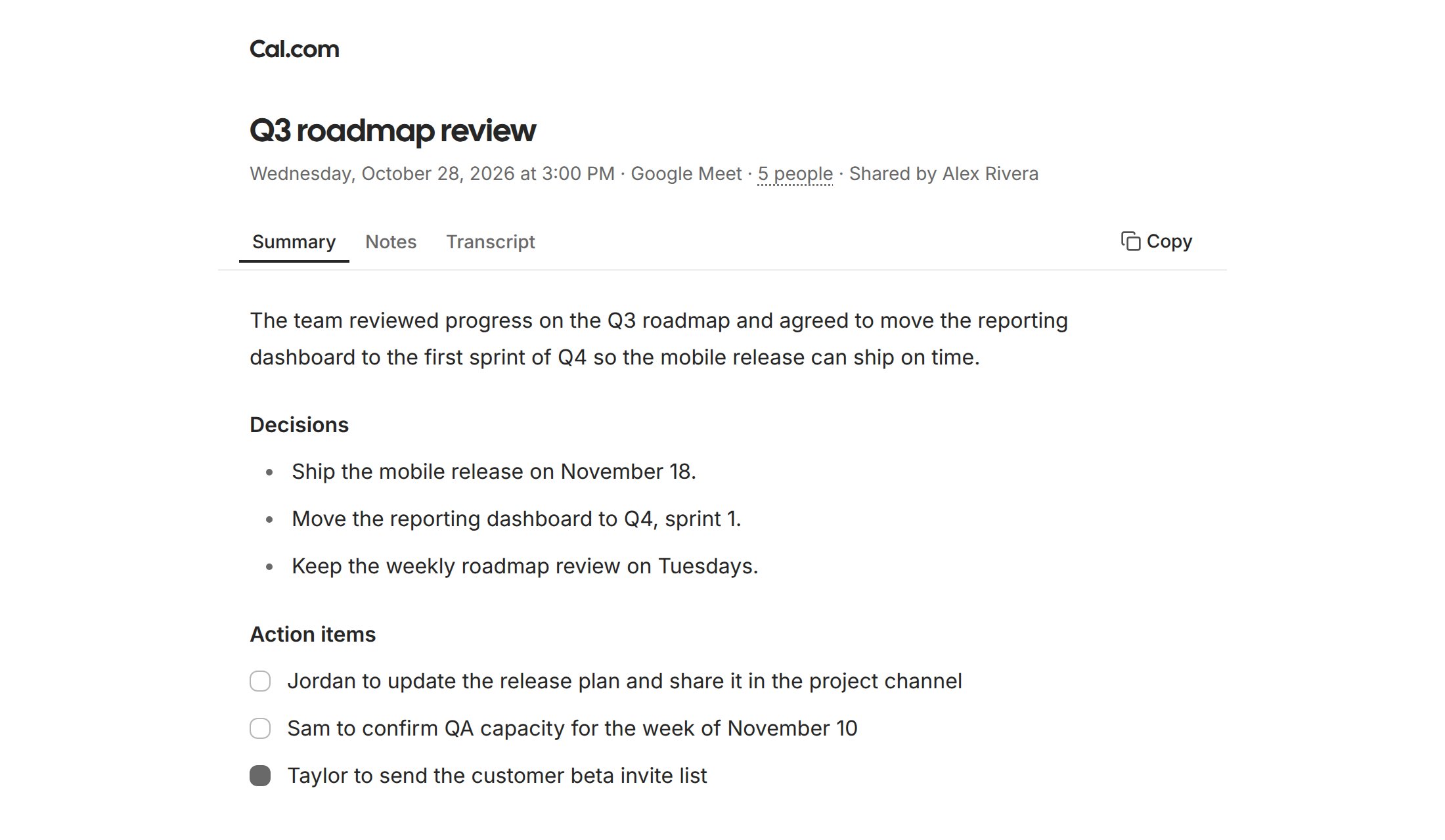
The top of the page shows the note’s title and, when the note has them:- The date and time the meeting started, in the viewer’s language
- Where the meeting took place, such as Google Meet or Zoom
- The number of people in the meeting, for example 5 people. Select it to see their names.
- Shared by and the name of the person who shared the note
When more than one section was shared, each one gets a tab and the page opens on the first, usually
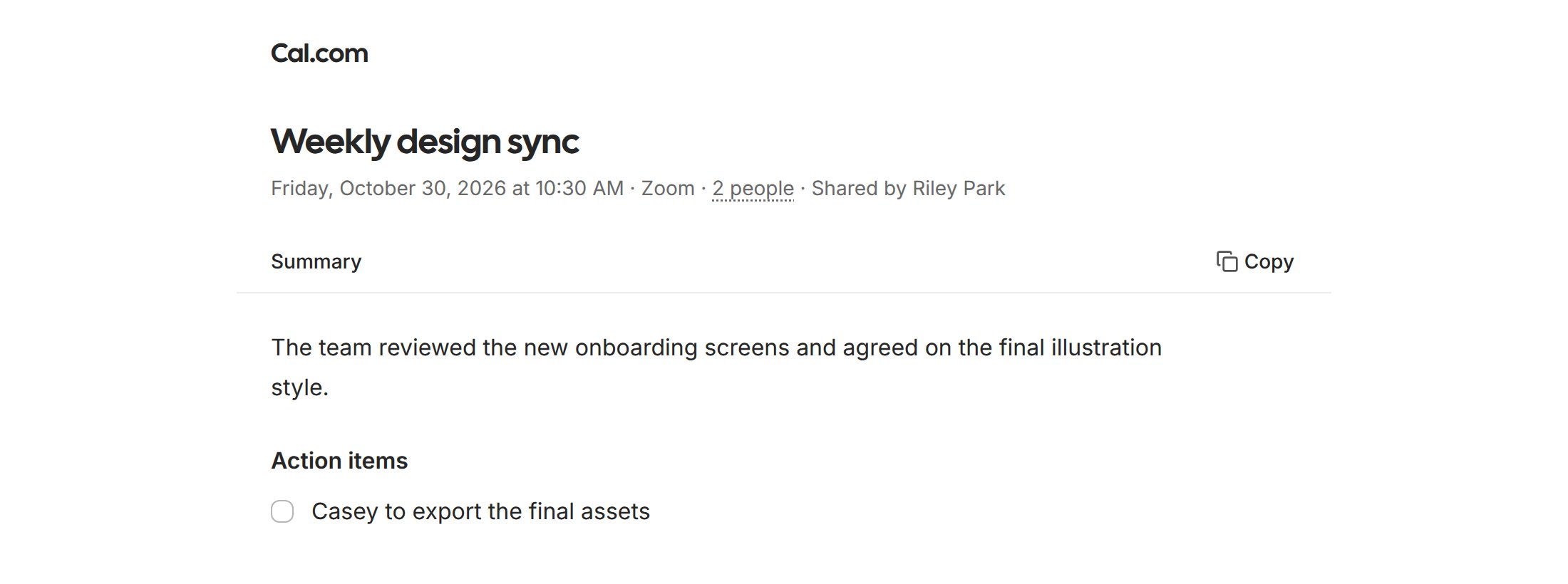
Summary. The tab bar stays at the top of the screen as you scroll. When only one section was shared,
which is often just the summary, there are no tabs and the page shows that section’s name instead.
Link to a tab
Opening any tab other than the first adds it to the page address, for example?tab=transcript,
so refreshing the page keeps that tab open. You can send a link with ?tab=transcript to open the
transcript straight away. If the section in the address wasn’t shared, the page opens on the first
section instead.
Search the transcript
On the Transcript tab, type in Search the transcript to show only the lines that contain your search. The search ignores capital letters and matches both what was said and the speaker’s name. Matches are highlighted. If nothing matches, the page says so, for example “Nothing in this transcript mentions “budget”.” Clear the search to see the whole transcript again.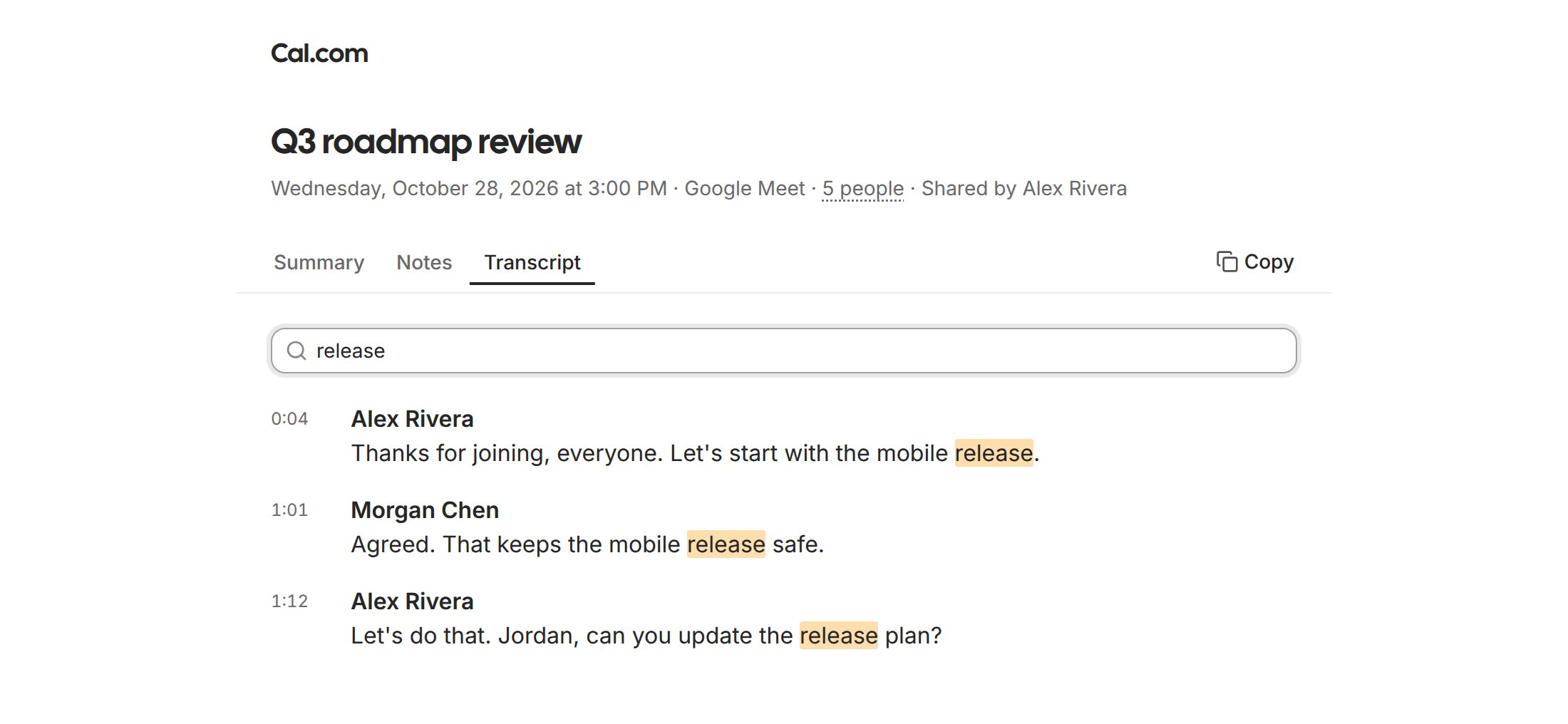
Copy a section
Select Copy next to the tabs to copy the section that’s open as Markdown. The button changes to Copied for a moment.- The copied text starts with the note’s title as a heading, followed by the section.
- Summary and Notes are copied as they were written, including action items as
- [ ]list items. - Transcript is copied with each speaker’s consecutive lines joined into one paragraph under their name and the time they started speaking.
When a link isn’t available
If the note can’t be shown, the page says “This link isn’t available”, usually with the reason below it:
If the page can’t reach Cal.com at all, it shows “This link isn’t available” without a reason.